
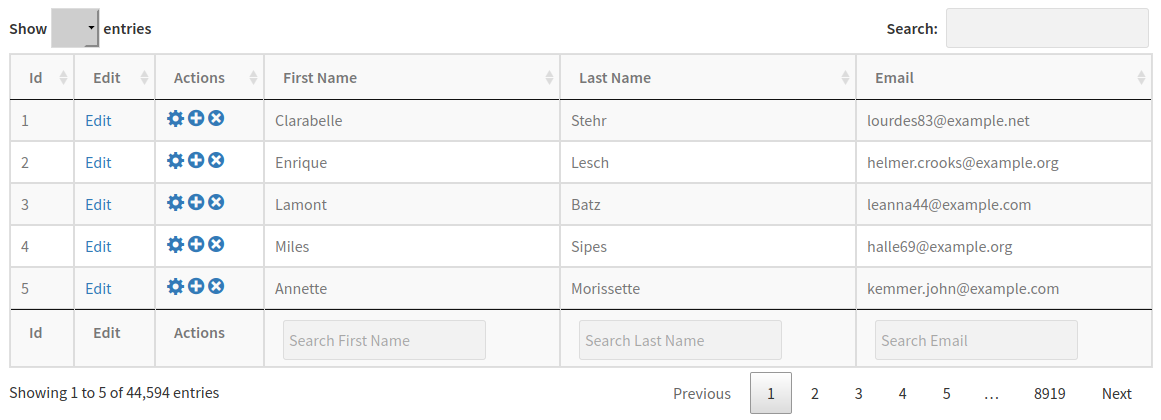
A dynamic hyperlink is a computed column generated on the fly. Column variables can be added to a hyperlink and are substituted on generation. Allows to add custom HTML (see icons in example below – click to enlarge).
Adding dynamic hyperlinks #
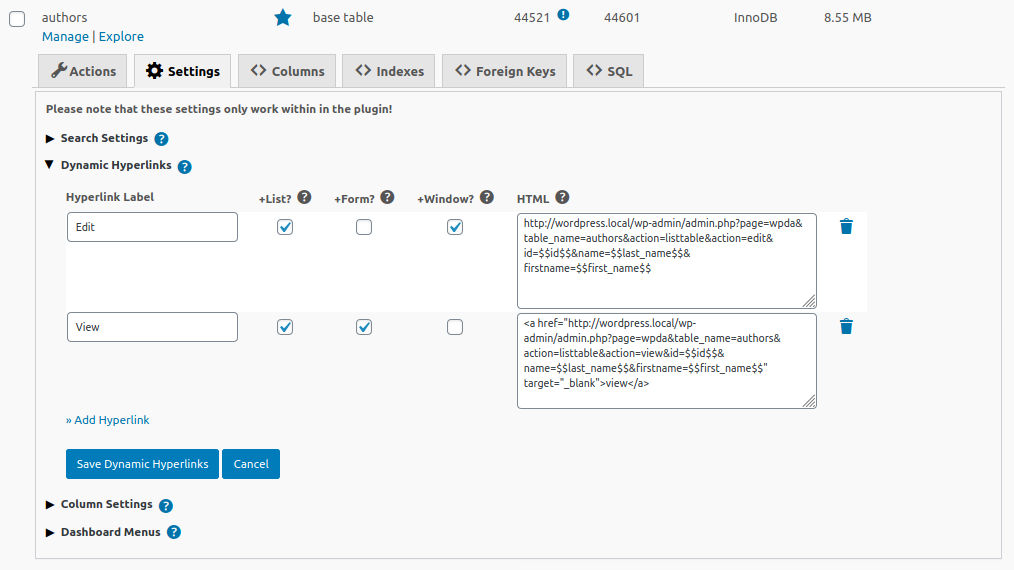
Hyperlink Label – Column label in a list or on a form.
+List? – Enable if hyperlink should be shown in lists.
+Form? – Enable if hyperlink should be shown in forms.
+Window? – Enable if hyperlink should be opened in a new tab or window.
HTML – Add a URL(like https://your-domain/) or add your own HTML including one or more hyperlinks. If you just add a URL, the plugin will use the Hyperlink Label and +Windows? settings. Otherwise the plugin uses your HTML code.
Add your own HTML if you want to:
-
- add multiple hyperlinks in one column
- use icons in your hyperlinks instead of the label text
- your own HTML to this column
Notes
- Links are added to the end of the table or view in the Data Explorer and Data Projects
- Links can be added on any position in Data Tables
Column Value Substitution
To use column values in a hyperlink simply add the column name between $$ to your URL or HTML. In the example below the variable $$id$$ is substituted with the value for column id. Column id must be a column of the table for which the hyperlink is created.
https://your-domain/service.php?id=$$id$$
#macro if-then-else #
Use #macro-if-then-else to add conditions to your dynamic hyperlinks. The following example shows only hyperlinks for sneakers:
#macro if "$$product_name$$" == "Sneakers"
  <a href="$$product_image$$">$$product_name$$</a>
#macro end if
The plugin also supports nested macros (see examples).
Examples of dynamic hyperlinks #
Add hyperlink https://your-domain/service.php?id=123 for id = 123
https://your-domain/service.php?id=$$id$$Add a hyperlink which asks for confirmation and then opens a Google search with first name and last name in a new tab or window.
<a href="javascript:void(0)" onclick="if (confirm('Search Google?')) { window.location.href='https://www.google.com/search?q=$$first_name$$+$$last_name$$'; }" target="_blank">Search Google for $$first_name$$ $$last_name$$</a>A nested if-then-else macro is used to show information depending on the column values. This can be combined with other options.
#macro if "$$product_image$$" != ""
  #macro if "$$product_name$$" == "Sneakers"
    <a href="$$product_image$$">$$product_name$$</a>
  #macro else
   <span>N.A.</span>
  #macro end if
#macro else
  <a href="javascript:void(0)" onclick="alert('This item is currently not available')">N.A.</a>
#macro end if
Data Tables #
To add a hyperlink to a data table:
- Edit your data table
- Click on the button “Select”
- Add your columns and hyperlinks to the list on the right side
- Save your table
Data Projects #
To add a hyperlink to a project:
- Edit your project template
- Select the tab “Table Settings”
- Enable the hyperlinks you want to add to your project
- Save your project