---
title: Dynamic Hyperlinks
description: "A dynamic hyperlink is a computed column generated on the fly. Column variables can be added to a hyperlink and are substituted on generation. Allows to add custom HTML (see icons in example below - click to enlarge). [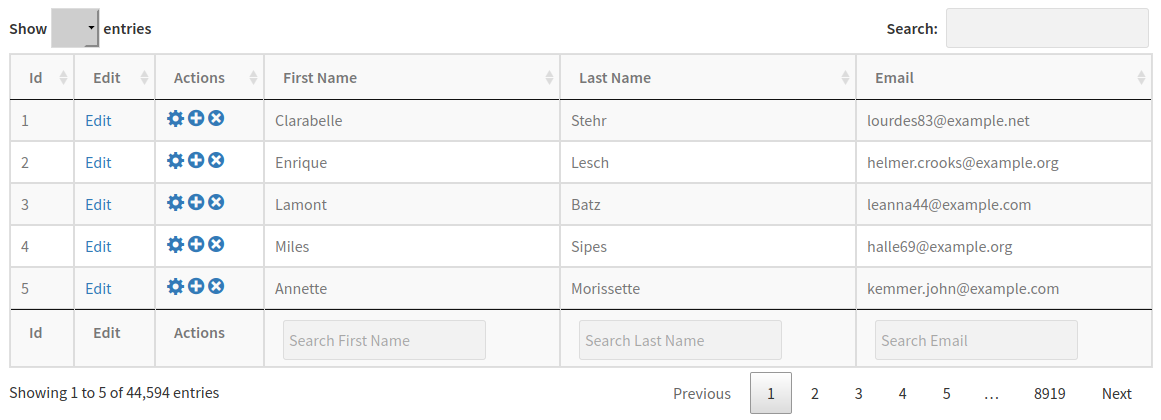](https://wpdataaccess.com/wp-content/uploads/2020/03/dynamic-hyperlinks-data-publisher.png) ##…"
url: "https://docs.legacy.wpdataaccess.com/docs/dynamic-hyperlinks/"
updated: "2025-11-19"
category: Data Explorer / Manage Settings
---
# Dynamic Hyperlinks
A dynamic hyperlink is a computed column generated on the fly. Column variables can be added to a hyperlink and are substituted on generation. Allows to add custom HTML (see icons in example below - click to enlarge).
[](https://wpdataaccess.com/wp-content/uploads/2020/03/dynamic-hyperlinks-data-publisher.png)
## Adding dynamic hyperlinks
[](https://wpdataaccess.com/wp-content/uploads/2020/03/dynamic-hyperlinks.png)
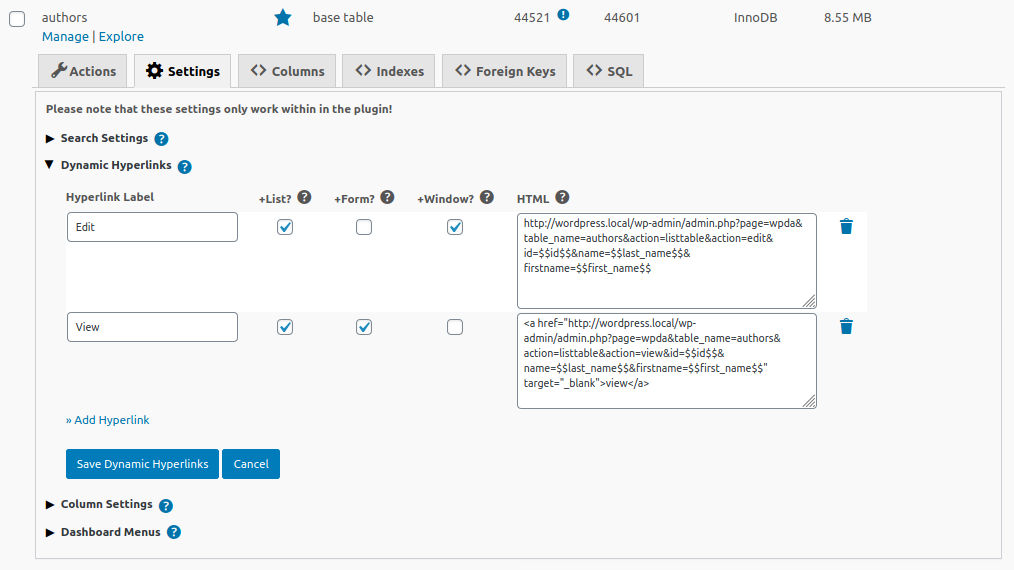
**Hyperlink Label -**Column label in a list or on a form.
**+List? -**Enable if hyperlink should be shown in lists.
**+Form? -**Enable if hyperlink should be shown in forms.
**+Window? -**Enable if hyperlink should be opened in a new tab or window.
**HTML -**Add a URL(like https://your-domain/) or add your own HTML including one or more hyperlinks. If you just add a URL, the plugin will use the **Hyperlink Label** and **+Windows?** settings. Otherwise the plugin uses your HTML code.
**Add your own HTML if you want to:**
- - add multiple hyperlinks in one column
- use icons in your hyperlinks instead of the label text
- your own HTML to this column
***Notes***
- Links are added to the end of the table or view in the Data Explorer and Data Projects
- Links can be added on any position in Data Tables
**Column Value Substitution**
To use column values in a hyperlink simply add the column name between `$$` to your URL or HTML. In the example below the variable `$$id$$` is substituted with the value for column **id**. Column **id** must be a column of the table for which the hyperlink is created.
`https://your-domain/service.php?id=$$id$$`
### #macro if-then-else[https://wpdataaccess.com/docs/data-explorer-settings/dynamic-hyperlinks/#macro-if-then-else](https://wpdataaccess.com/docs/data-explorer-settings/dynamic-hyperlinks/#macro-if-then-else)
Use #macro-if-then-else to add conditions to your dynamic hyperlinks. The following example shows only hyperlinks for sneakers:
```
#macro if "$$product_name$$" == "Sneakers"
$$product_name$$
#macro end if
```
The plugin also supports nested macros (see examples).
### Examples of dynamic hyperlinks
Add hyperlink https://your-domain/service.php?id=123 for id = 123
```
https://your-domain/service.php?id=$$id$$
```
Add a hyperlink which asks for confirmation and then opens a Google search with first name and last name in a new tab or window.
```
Search Google for $$first_name$$ $$last_name$$
```
A nested if-then-else macro is used to show information depending on the column values. This can be combined with other options.
```
#macro if "$$product_image$$" != ""
#macro if "$$product_name$$" == "Sneakers"
$$product_name$$
#macro else
N.A.
#macro end if
#macro else
N.A.
#macro end if
```
## Data Tables[https://wpdataaccess.com/docs/data-explorer-settings/dynamic-hyperlinks/#data-publisher](https://wpdataaccess.com/docs/data-explorer-settings/dynamic-hyperlinks/#data-publisher)
To add a hyperlink to a data table:
- Edit your data table
- Click on the button "Select"
- Add your columns and hyperlinks to the list on the right side
- Save your table
## Data Projects[https://wpdataaccess.com/docs/data-explorer-settings/dynamic-hyperlinks/#data-projects](https://wpdataaccess.com/docs/data-explorer-settings/dynamic-hyperlinks/#data-projects)
To add a hyperlink to a project:
- Edit your project template
- Select the tab "Table Settings"
- Enable the hyperlinks you want to add to your project
- Save your project