
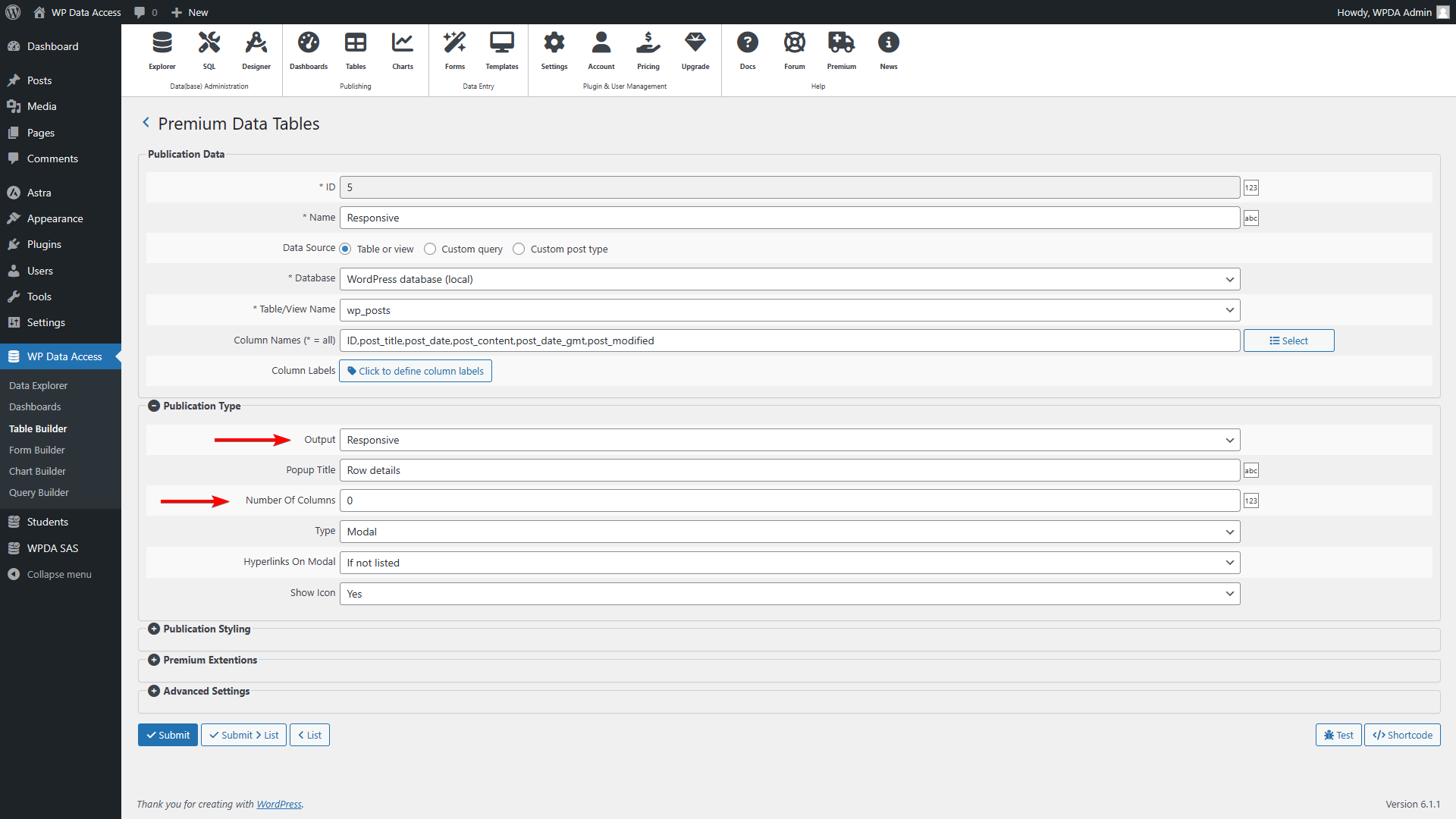
To make a data table responsive, just set:
- Output = Responsive
- Number Of Columns = 0
That’s all! See image below (click to enlarge) or watch the video tutorial.
Inline demo #
| ID | Gender | Date Of Birth | Firstname | Lastname | Address | Zipcode | City | County | Country | Phone No | Registration Date | |
|---|---|---|---|---|---|---|---|---|---|---|---|---|
| ID | Gender | Date Of Birth | Firstname | Lastname | Address | Zipcode | City | County | Country | Phone No | Registration Date |
Number of columns #
Set to 0 to use the device settings (responsive mode). If set to a higher value, the number of columns shown is fixed (regardless of the device type) but enabled the modal and expansion features.
Popup window #
Select Type = Modal if you want row details to be shown in a popup. Use the Popup Title column to add a title to your popup window.
Collapsed #
With Type = Collapsed row details are shown inline.
Expanded #
Same as Collapsed but starting in expanded mode.