
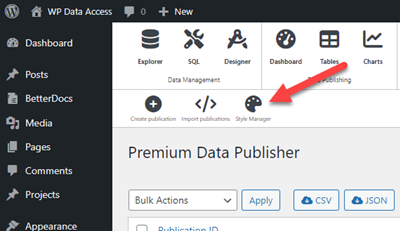
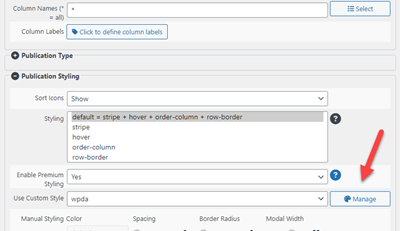
The Style Manager is a premium feature that allows plugin users to interactively style data tables. The Style Manager can be reached from the icon on the Data Tables main page or from the Data Tables configuration form and does not require any technical skills.
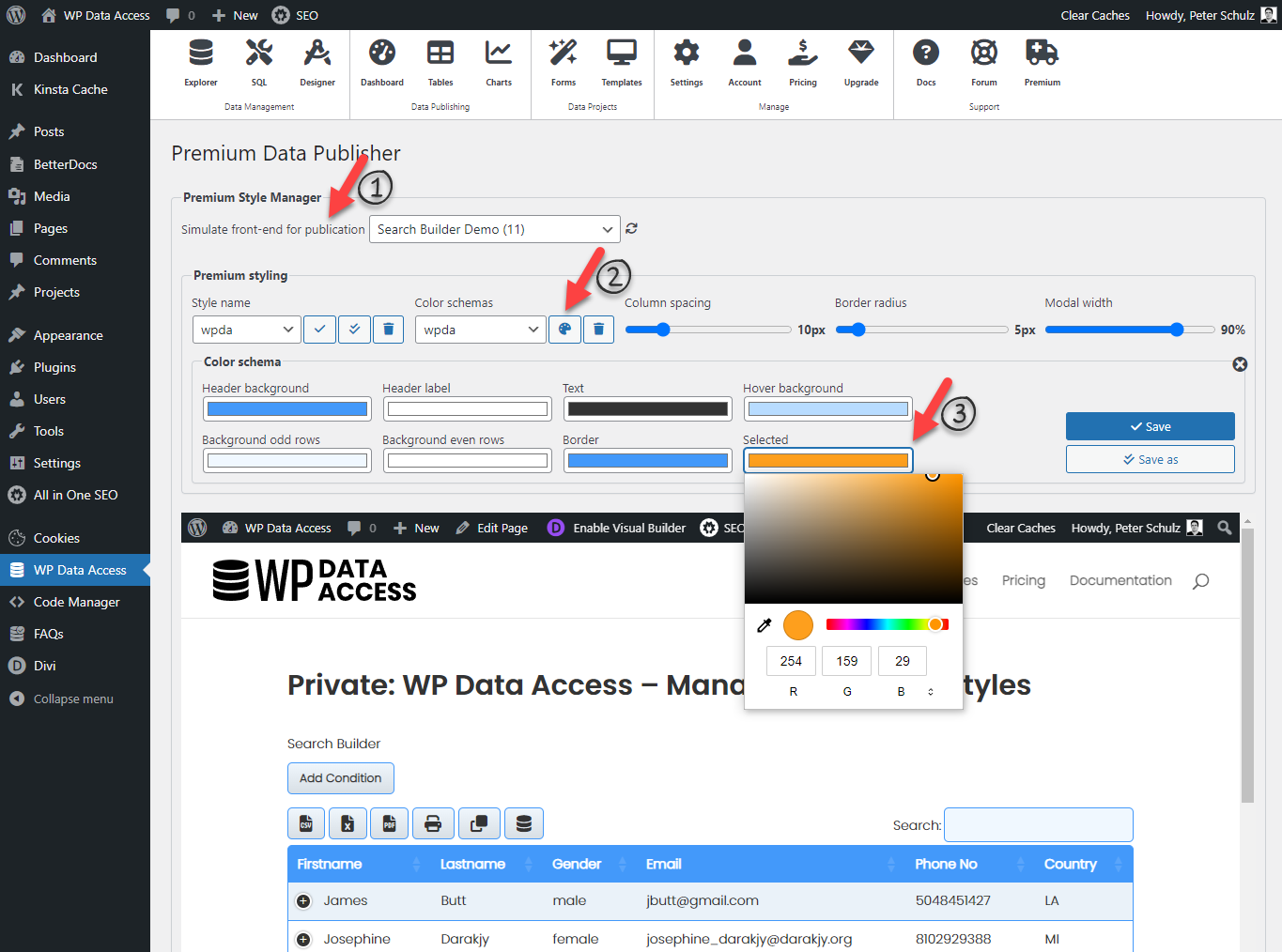
The Style Manager simulates a front-end page showing a data table (1) and immeditately syncs your style changes to the selected data table. It starts with the default premium settings. Pre-defined color schemas can be used as a jumpstart to create your own color schemas. Click the manage color schema button (2) to fine tune your color settings and use the sliders to adjust other style settings. A mouse click on a color field open a color palette (3).
Custom styles #
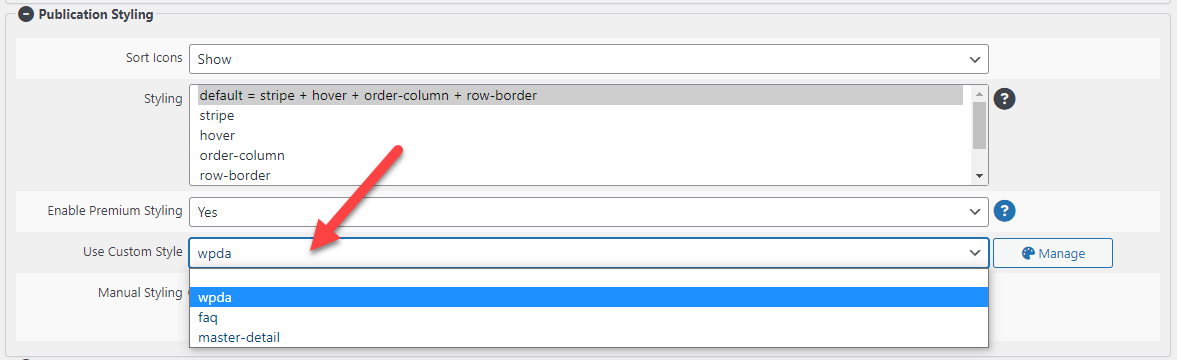
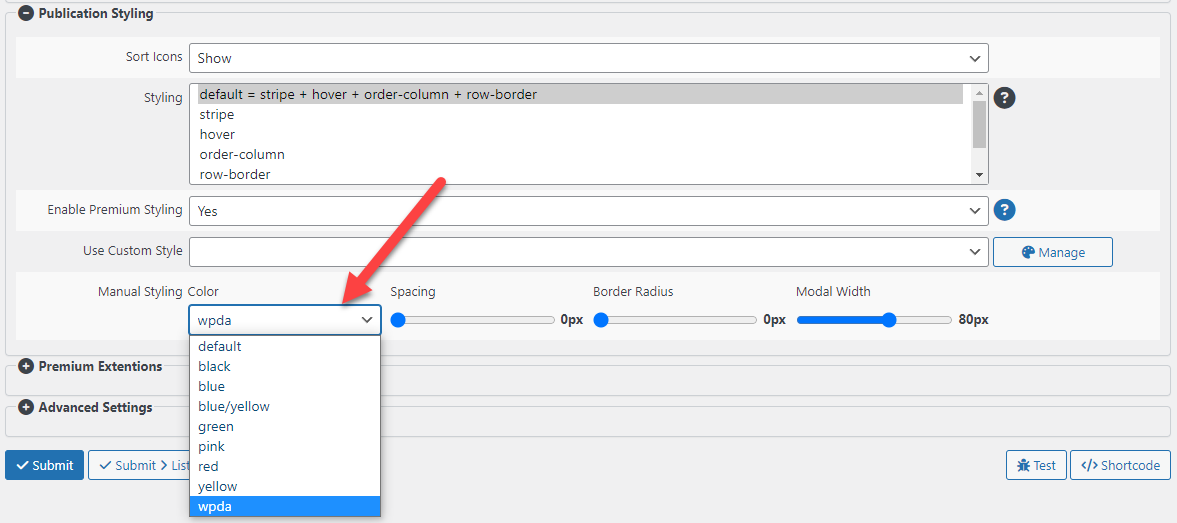
A custom style can be selected from a drop-down list in the Data Tables styling section. The style will be applied to the data table when it is shown on the front-end. Please note that custom styling is currently not supported on dashboards.
Color schemas #
Inline demo #
| Firstname | Lastname | Gender | Phone No | Country | County | City | Zipcode | Address | Date Of Birth | Registration Date | ID | |
|---|---|---|---|---|---|---|---|---|---|---|---|---|
| Firstname | Lastname | Gender | Phone No | Country | County | City | Zipcode | Address | Date Of Birth | Registration Date | ID |
Notes #
- Do not use global styling in combination with the Style Manager
- This feature can be used to style data tables only, projects require different styling