
WP Data Access > Data Explorer > Manage > Settings > Geolocation Settings
Features #
- Google Maps integration
- Map geolocation data to custom tables
- Run batch updates
- Generate maps from custom tables
- Add customizable markers
- Use user location on map
- Radius search (from user or specific position)
- Shortcode [ wpdageomap ]
Demos & Tutorials #
Demos #
- Simple geolocation demo
- Add geolocation to publication (using fixed position)
Geolocation columns #
The plugin uses the Google Maps API to get geolocation information and stores this information in your database table to prevents unnecessary API calls and make geolocation queries as fast as possible. The geolocation settings page allows plugin users to store four geolocation values:
- Latitude – float(10, 6)
- Longitude- float(10, 6)
- Location type – varchar(200)
- Viewport – varchar(200)
The latitude and longitude must be stored in your database table to use geolocation search. The location type and viewport are currently not used, but it is advised to store this information for future enhancements. It is important to store this information in the given format. Below is an example of a create table script:
CREATE TABLE `stores` (
  `store_id`		bigint(11)	NOT NULL AUTO_INCREMENT,
  `store_name`		varchar(200)	NOT NULL,
  `store_address` 	varchar(200)	NOT NULL,
  `store_zip`		varchar(10),
  `store_city`		varchar(200)	NOT NULL,
  `store_info`		text,
  `store_site`		varchar(200),
  `store_phone`		varchar(10),
  `store_email`		varchar(200),
  `store_latitude`	float(10,6),	// stores latitude
  `store_longitude`	float(10,6),	// stores longitude
  `store_location_type`	varchar(200),	// stores location type
  `store_viewport`	varchar(200),	// stores viewport
  PRIMARY KEY (`store_id`)
);Enabling Geolocation #
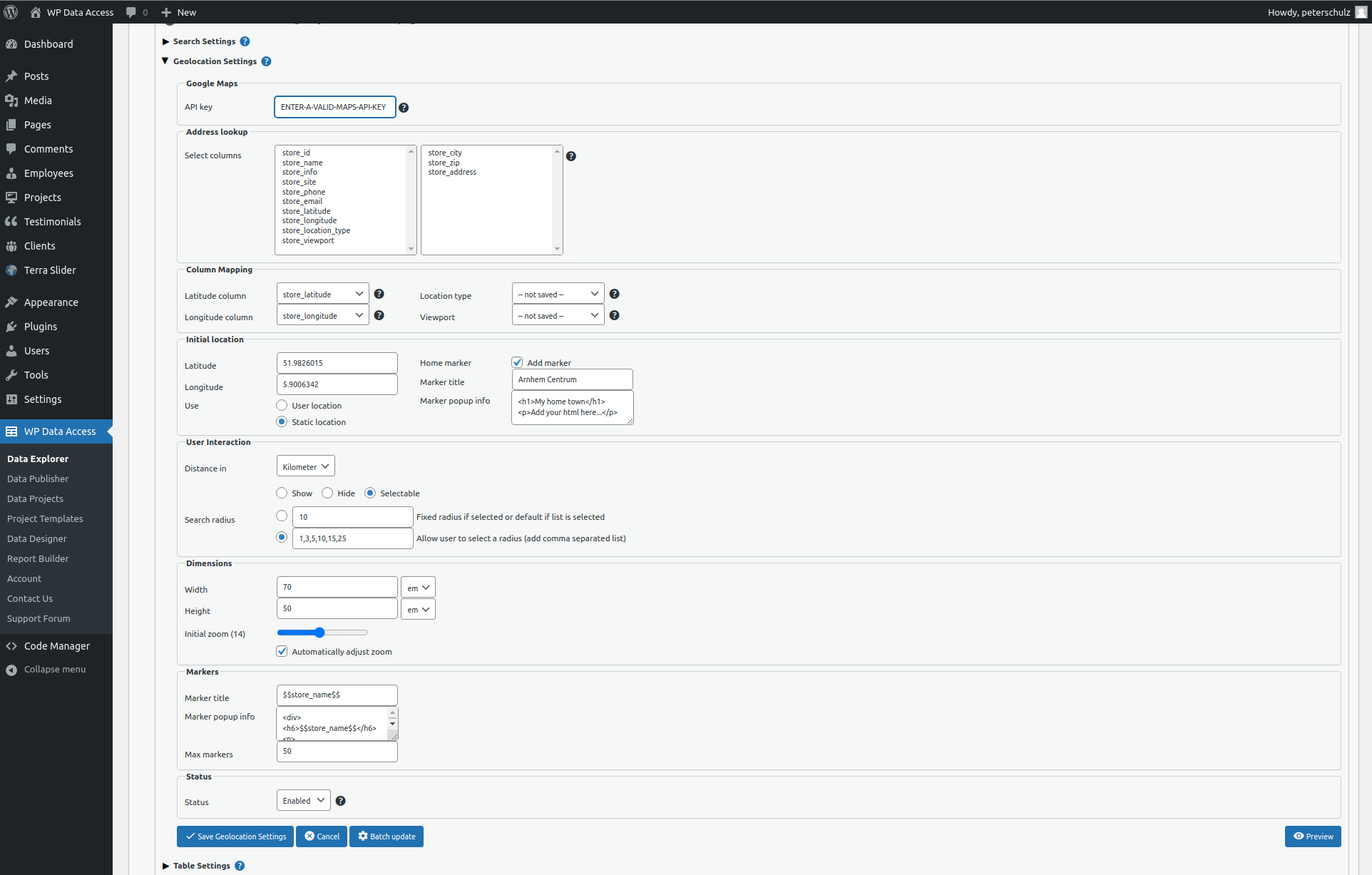
Google Maps #
API key (mandatory) – The first step is to obtain a valid Google Maps API key. A key can be created for free. This should be sufficient for developers. Make sure to secure keys used on production servers.
Address lookup #
Select columns (mandatory) – The plugin uses these columns to get the geolocation information from the Google Maps API. The order in which you enter these columns can have an influence on the results. Use some test data to find the optimal order. You can check this by accessing Google Maps in your browser.
Column Mapping #
Latitude column (mandatory) – The plugin uses this column to store the latitude. Store the latitude in a column data type float(10,6).
Longitude column (mandatory) – The plugin uses this column to store the longitude. Store the longitude in a column data type float(10,6).
Location type (optional) – The plugin uses this column to store the location type. The location type is currently not used by the plugin. This information can be stored for future purposes.
Viewport (optional) – The plugin uses this column to store the location viewport. The location viewport is currently not used by the plugin. This information can be stored for future purposes.
Initial location #
Latitude (mandatory) – Default latitude if no user location.
Longitude (mandatory) – Default longitude if no user location.
Use User location | Static location (mandatory) – Select user or static location for the map.
Home marker | title | popup info (optional) – Add a marker to the static location or user position. Supports HTML.
User interaction #
Distance in (mandatory) – Select if range distance is to be calculated in kilometers or miles.
Show | Hide | Selectable (mandatory) – Selectable allows user to change the range. Only works with comma separated list of ranges.
Search radius (mandatory) – Fixed or selectable range. Range must be a comma separated list of integers.
Dimensions #
Width (mandatory) – Map width (use shortcode parameter map_width to overwrite).
Height (mandatory) – Map height (use shortcode parameter map_height to overwrite).
Inital zoom (mandatory) – Initial zoom (use shortcode parameter map_zoom to overwrite). Not used if automatically adjust zoom is enabled.
Automatically adjust zoom (mandatory) – Automatically adjusts zoom when user changes the range.
Markers #
Marker title | popup info – Define the layout of a marker. Support HTML and column values in title and popup info. Column values can be added using the $$column_name$$ format.
Max markers – Maximum number of markers added to a map.
Status #
Status – Can only be enabled if all mandatory fields are entered.
Geolocation batch #
The geolocation batch procedure uses the Google Maps API to update the geolocation information stored in a specific database table. The procedure is started from the Geolocation Settings of the table to be upated. See the “Batch update” button in the screenshot below (click to enlarge).

A selectbox allows the user to update all rows or only rows without geolacation information (no latitude and/or longitude). The number rows per update can also be entered. It is possible to cancel the batch procedure any time by pressing the cancel button.